We respect your privacy



























STEP 1 – logging into the ePorezna system
Click on the link: e-porezna.porezna-uprava.hr/Prijava.aspx When the page opens, select the option “Login”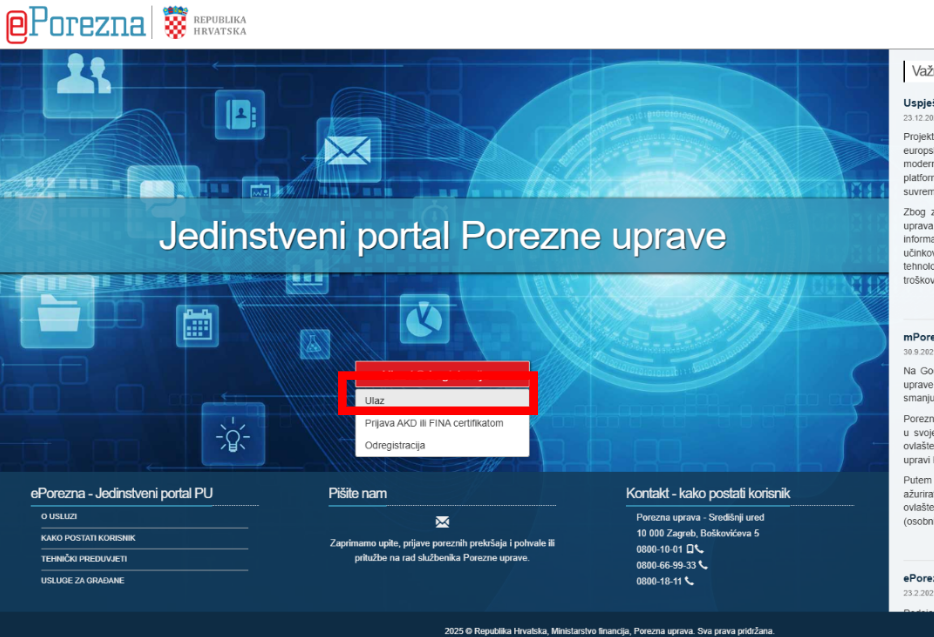
STEP 2 – choosing the login method (e-ID card, bank)
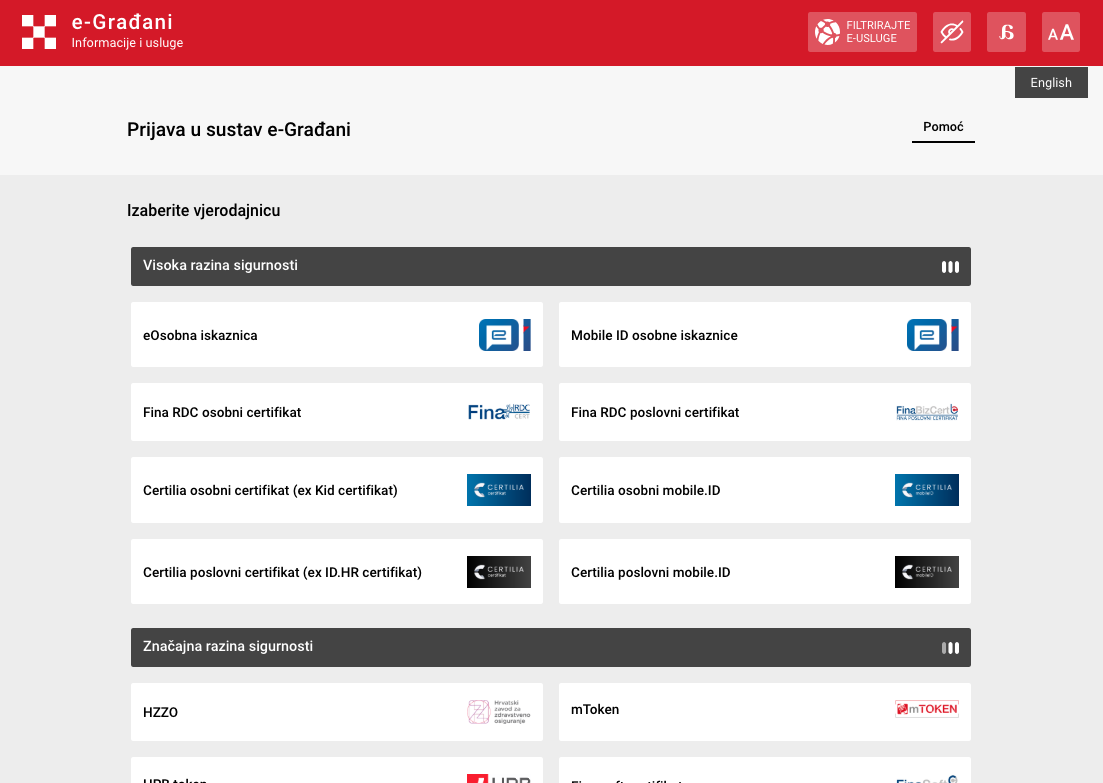
You will be presented with options for logging into the eGrađani, i.e. ePorezna system.You can log into the system in one of the following three ways (exclusively the person to whom the categorization is issued):
- via the electronic ID card (with an e-ID card reader)
- via a mobile banking application and
- via access credentials that can be obtained at FINA.
STEP 3 – entering user credentials
After selecting the desired login method, you need to enter the login credentials. For example, if you are logging in via a bank, you will need to enter the token serial number and the one-time password generated by your mobile banking application. Do not forget to select the option confirming that you are familiar with the information on the processing of personal data. Below is an example of the login interface via an OTP token.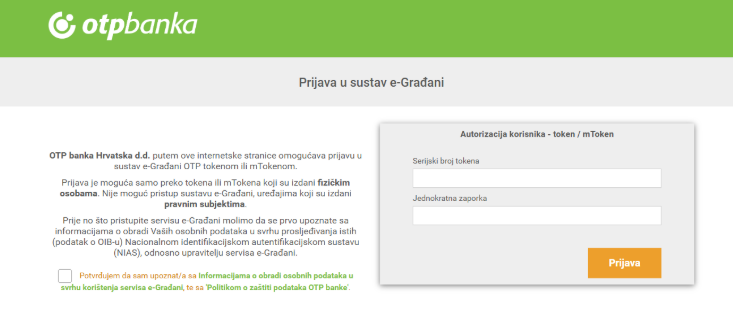
STEP 4 – entering an email address
Before continuing, the system will ask you to enter your email address. Enter it in the designated field.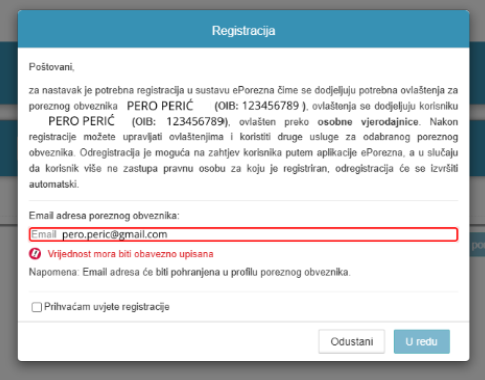
STEP 5 – searching for Form TZ2
Once you are in the system, find Form TZ2 by typing “TZ2 form” into the search field. As soon as you start typing, a link for filling out the form will appear below the search field. Click on it to open the form. Note: the option to open Form TZ2 is available only to users who have registered accommodation facilities in their own name. For example, if you try to open Form TZ2 via the ePorezna login of another family member, this option will not be available, as the system recognizes, based on the OIB, to whom the accommodation facility is registered.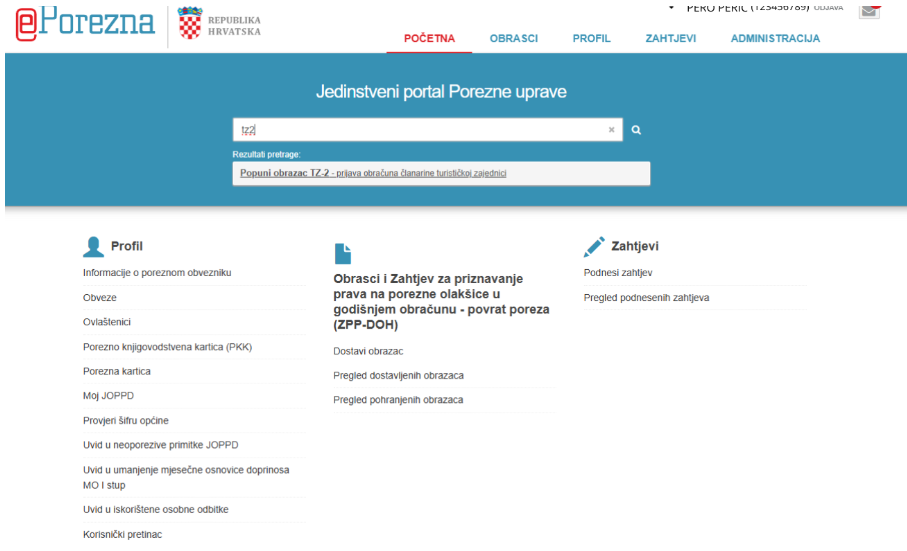
STEP 6 – selecting the municipality/city according to place of residence
The first part of the form opens automatically, where you can see your details. Here you only need to select the municipality or city (according to your place of residence) from the dropdown menu.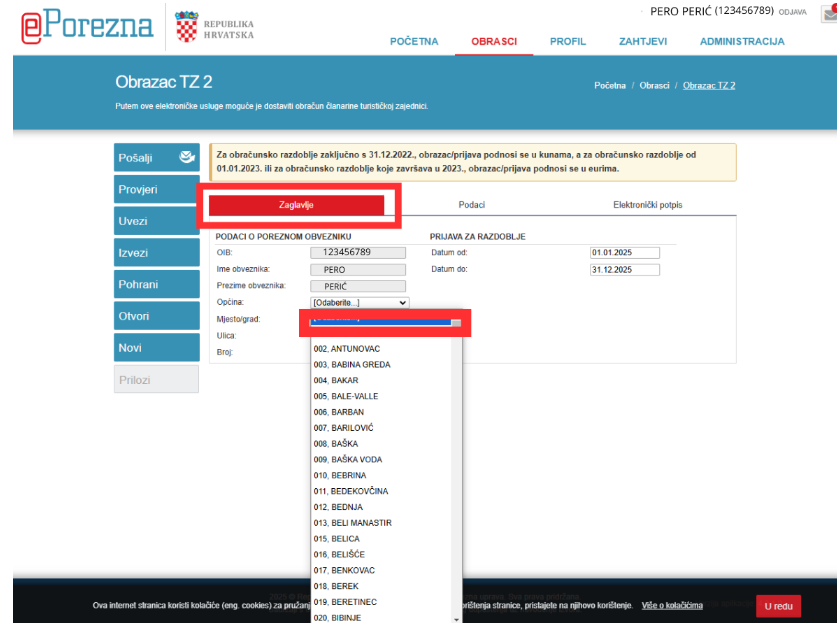
STEP 7 – entering data in Form TZ2
After selecting the municipality/city, choose the “Data” option to enable further completion of the form.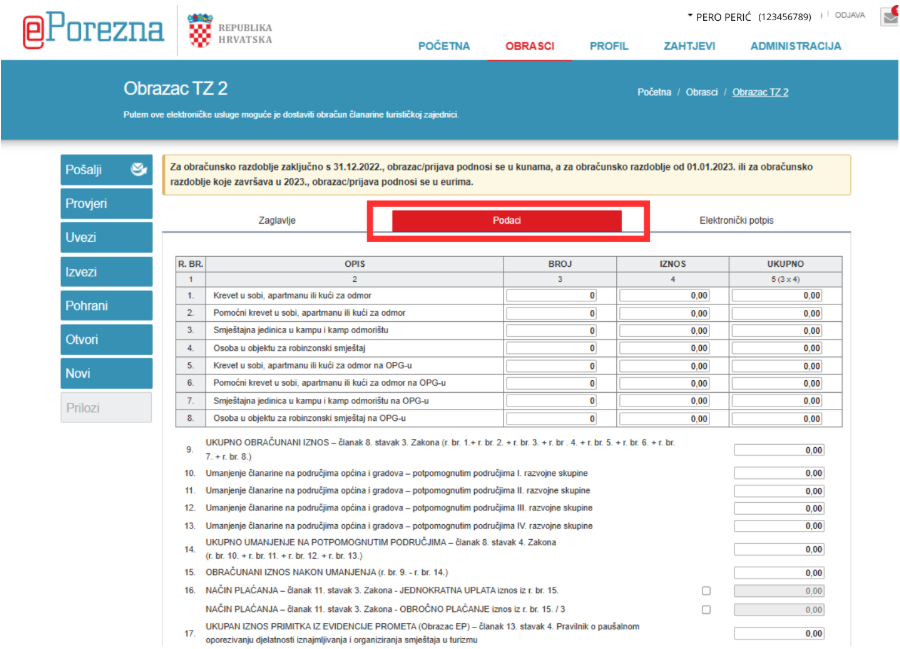
STEP 8 – entering data in Form TZ2
You now enter data about your accommodation into the form. Enter the number of permanent and auxiliary beds and their quantities, as well as the membership fee per bed (EUR 5.97 per permanent bed and EUR 2.99 per auxiliary bed). Multiply the number of beds by the membership fee amount to obtain the total amount, which you enter in line 9 – Total calculated amount. If your municipality or city is not located in assisted areas, skip lines 10 to 13 and enter “0” as the total reduction in line 14. Then, in line 15, re-enter the calculated membership fee amount (the same as in line 9). Next, choose the payment method, i.e. whether you want to pay the membership fee in a single payment or in three equal installments. According to your selection, enter the amount to be paid in the column next to the chosen option. For example, if your total calculated amount is EUR 29.86 and you selected a single payment, enter that amount. If you selected payment in three installments, enter EUR 9.95 (29.86 / 3). Before performing the final check and submitting the form, it is necessary to enter the total amount of receipts from the turnover records of the previous year in line 17 (the gross amount is entered – with special attention to including portal commissions; for example, it is important to distinguish Airbnb, where the host commission is ≈ 3% and the rest is the guest commission, while in the case of Booking.com the entire commission is borne by the accommodation provider).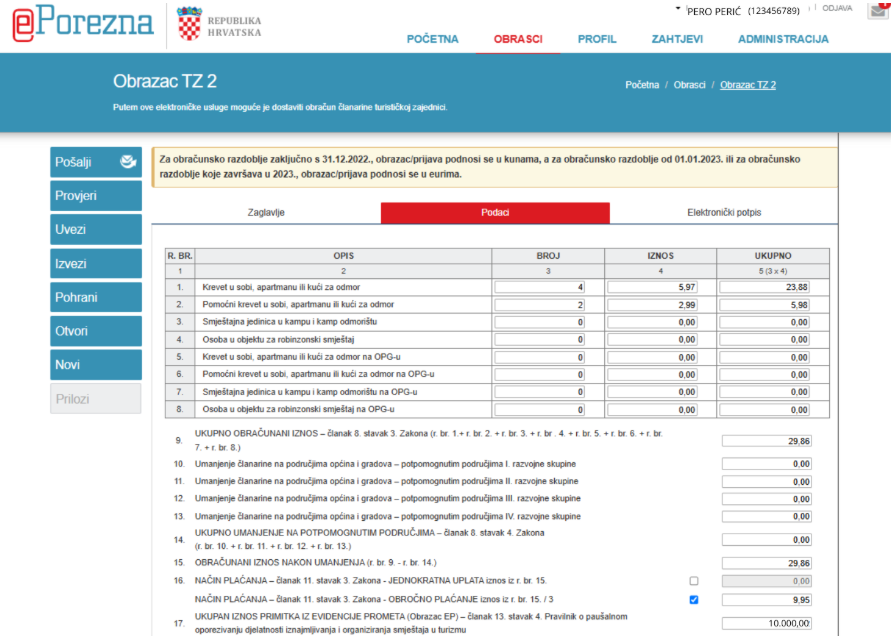
STEP 9 – data verification
Once you have finished filling out the form, click “Check” to verify that everything has been filled in correctly. If an error has occurred, the system will notify you and display a message indicating what needs to be changed. When everything is correct, you will see a notification at the top of the page stating that the form data is valid.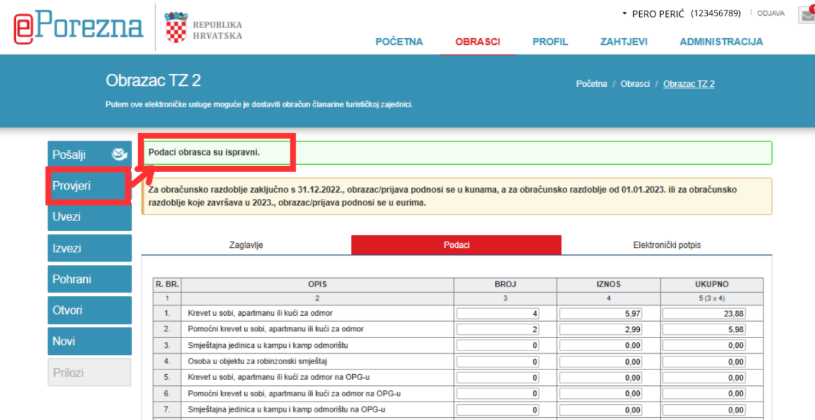
STEP 10 – submitting the form
All that remains is to submit the form, which you do by selecting the “Send” option in the menu on the left-hand side.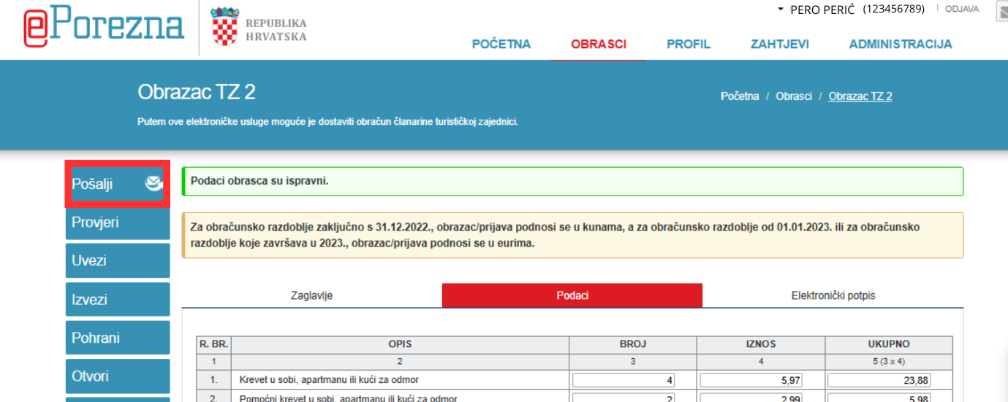
STEP 11 – submission confirmation
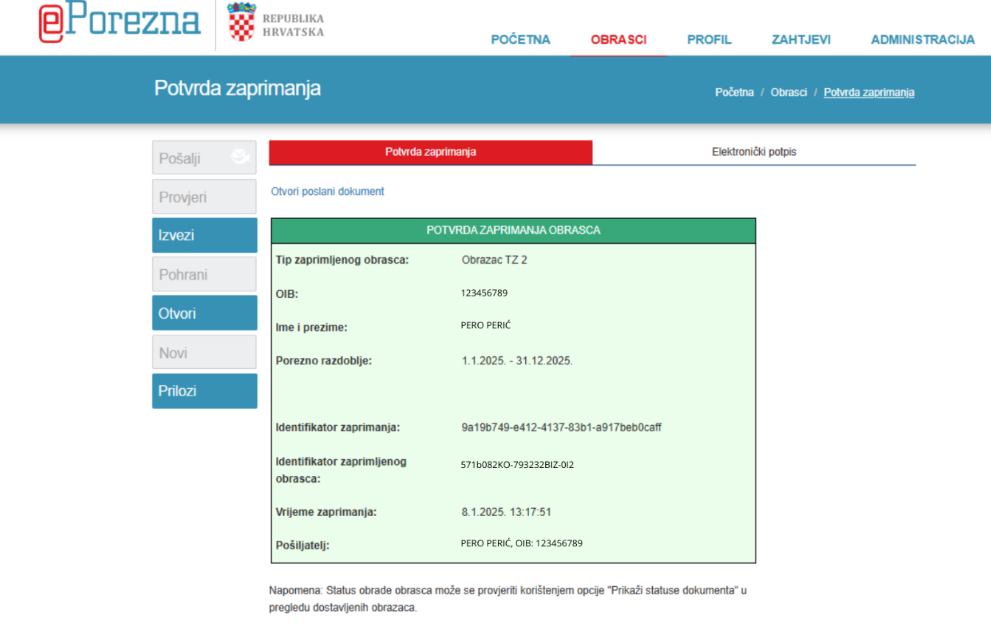
The form has been submitted to the Tax Administration, and you will receive a confirmation of receipt. It is advisable to save or print this confirmation so that you have proof that you submitted the form on time.